How to Get More Battery Life from Your Laptop When You're Away from an Outlet
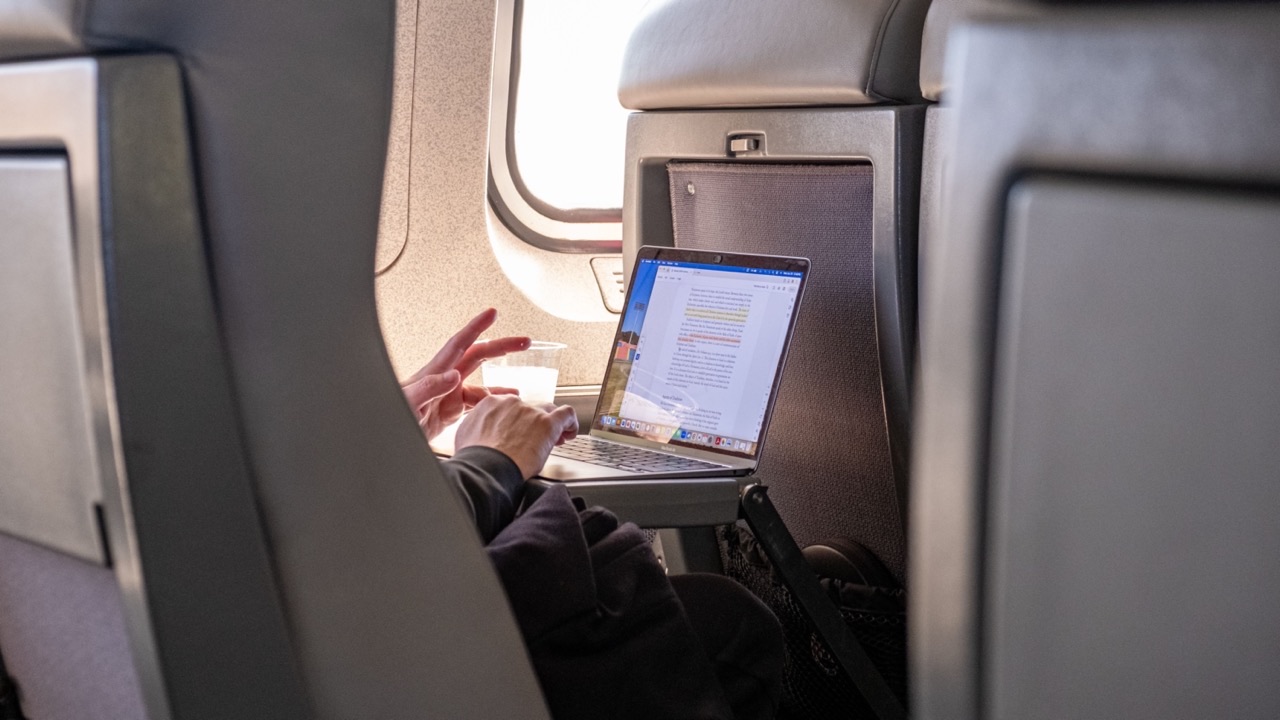
There’s a specific kind of anxiety that comes from watching your laptop battery percentage drop faster than expected when there’s no outlet nearby. On a long flight, in a meeting room without power strips, in a café that doesn’t have accessible sockets — knowing your battery is going to run out before you finish what you’re doing is a genuinely annoying constraint.
Most of what gets recommended to extend battery life is vague (“use power saving mode”) without explaining how much difference it actually makes or why. Here’s what actually moves the needle and by how much.
Screen brightness: the single biggest drain you control
The display is typically the largest consumer of power on a laptop, and it’s something you control directly. Running the screen at full brightness can use two to three times as much power as running it at 50% brightness. In practical terms, if your battery normally lasts four hours at full brightness, dropping to 50% might add 30–45 minutes to your session.
The threshold where brightness starts becoming uncomfortable is higher than most people expect. Indoors — in a café, hotel lobby, or aircraft cabin — your screen at 40% is usually perfectly readable. Outdoors in direct sun, you’ll need more, but indoors you’re almost certainly running brighter than you need to.
Turn auto-brightness off if your laptop has it. Auto-brightness often compensates upward when you move between different light environments, and the adjustments aren’t always in your favor. Set it manually to the lowest level that’s comfortable and leave it there.
The applications that eat power when you’re not looking
Open Task Manager on Windows (or Activity Monitor on macOS) while you’re trying to conserve battery and sort by CPU usage. What you usually find is that the applications you’re actually using aren’t the biggest consumers — it’s background processes that are doing work you didn’t ask for.
Common culprits: cloud sync clients (Dropbox, OneDrive, iCloud) syncing files in the background; browser tabs running JavaScript-heavy pages that keep refreshing; antivirus performing scheduled scans; software updaters polling for updates. None of these need to run during a battery-constrained session.
Quit the sync clients when you don’t need them. Keep your active browser tabs to what you’re actually using and close the rest. If you’re working in a document, close the browser entirely and work offline. A browser with 20 tabs open consumes noticeably more power than a browser with two, even when you’re not actively switching between tabs.
Power plan settings: what actually matters
The difference between “balanced” and “battery saver” power plans on Windows isn’t primarily about throttling CPU performance — it’s about how aggressively the system reduces background polling and allows components to sleep. Battery saver turns down screen brightness, reduces background activity, and puts the display to sleep sooner.
On macOS, Low Power Mode does something similar. It reduces display and processor performance slightly, reduces background sync and visual effects, and tightens the idle timers. Apple doesn’t publish exact numbers, but in practice Low Power Mode adds meaningful time to a session that would otherwise run out.
Enable whichever power saving mode your system offers, and don’t feel like you need to turn it off while doing serious work. For most tasks — writing, email, spreadsheets, video calls — you won’t notice the CPU throttling. You will notice the extra battery time.
Wi-Fi and Bluetooth when you don’t need them
Both Wi-Fi and Bluetooth radios consume power even when they’re not actively transferring data — they’re constantly scanning for networks and devices. If you’re working offline on a document or doing something that doesn’t need connectivity, turning Wi-Fi off can save a noticeable amount of power.
The saving is more significant for Wi-Fi than Bluetooth, and it’s more significant when the signal is weak (the radio has to work harder to maintain a connection). If your Wi-Fi signal in your current location is poor and you’re not actively using the internet, turning Wi-Fi off is worth it.
Bluetooth headphones connected to the laptop do draw some power, but the amount is relatively small compared to other drains. If you’re listening to audio while working, keeping Bluetooth connected for headphones while disabling Wi-Fi if you don’t need it is a reasonable tradeoff.
Keyboard backlighting
Gaming laptops and some higher-end business laptops have illuminated keyboards with RGB or white backlighting. Keyboard backlighting can draw 1–3 watts depending on the brightness and color configuration. At 1 watt of additional draw, it adds up to about 5% less battery life over a four-hour session. Turn it off when you’re conserving battery — or at minimum reduce it to its lowest setting.
What the battery percentage display is actually telling you
When the laptop shows 20%, it doesn’t mean you have exactly 20% of your original battery capacity left. It means 20% of whatever the current full charge capacity is. If your battery has degraded to 70% of its original capacity, then “full” for your battery management system is 70% of what the laptop shipped with — and 20% of that is quite a bit less runtime than a new battery’s 20%.
This is worth understanding because it explains why older laptops seem to drain faster from 20% than from 80–60%. The estimate gets less accurate as the battery capacity decreases and as the chemical state of the cells gets harder to predict.
If your laptop battery seems to drop faster than it used to despite following power-saving practices, the battery itself may be the constraint. Improving laptop battery life at that point is less about software settings and more about getting the hardware back to where it was when the machine was new — which means a replacement rather than another power plan adjustment.
Summary: what to do right now
Lower your screen brightness to the lowest readable level. Quit sync clients and close unused browser tabs. Enable your system’s battery saver mode. Turn off Wi-Fi if you don’t need it. Turn off keyboard backlighting. That combination is likely to add 30–60 minutes to a typical four-hour battery session, which is meaningful when you’re working against a clock.